This article brings product purchases into one process: confirm requirements, choose the product and options, review the order, pay, then obtain resources and test the connection. The guide currently focuses on static ISP, native static residential and datacenter proxies.
Before purchasing
- Register and sign in to a MantaProxy account with dashboard access.
- Identify the target region, required IP quantity and expected duration.
- Check your tool’s supported protocols and authentication methods, and distinguish a new resource purchase from renewal of an existing resource.
Need an account? Use the official registration page. Existing users can sign in to the dashboard.
Create an account · Open the dashboard
1. Select a region and proxy type
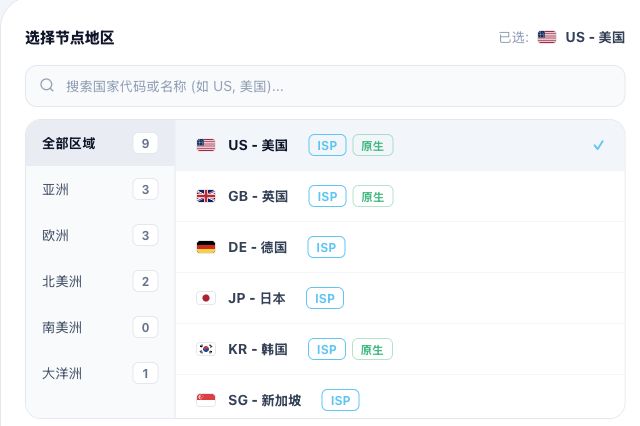
After signing in, open Purchase proxies (购买代理) in the sidebar. In the region section, filter by continent or search by country code or name. Select the region and check the selected value in the upper-right corner.
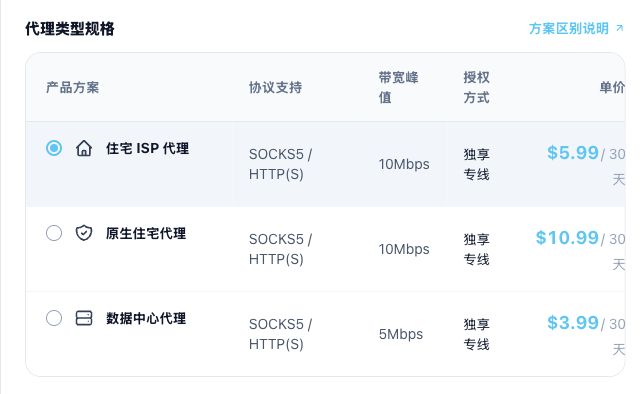
Next, use the proxy specifications table. The panel’s 住宅 ISP 代理 means static ISP, and 原生住宅代理 means native static residential. Select the product row and check protocols, peak bandwidth, authorization and unit price. Scroll horizontally if the table does not fit.
| Product | Typical requirements | Check before purchase |
|---|---|---|
| Static ISP | Fixed exits for store management and everyday social media operations | Region, ISP residential attributes, IP quantity and duration |
| Native static residential | Localized operations, streaming and tasks emphasizing local network identity | IP location and local ISP attributes, available regions and plan terms |
| Datacenter | General access, network monitoring and automated testing | Target acceptance of datacenter networks, performance and duration |
Rotating residential and 4G/5G mobile products are in internal planning. Choose from the static products actually available in the dashboard.
If you are unsure, read “Product selection” first. Match the network requirements before comparing plans to reduce the risk of choosing an unsuitable product.
2. Set duration, quantity and an optional note
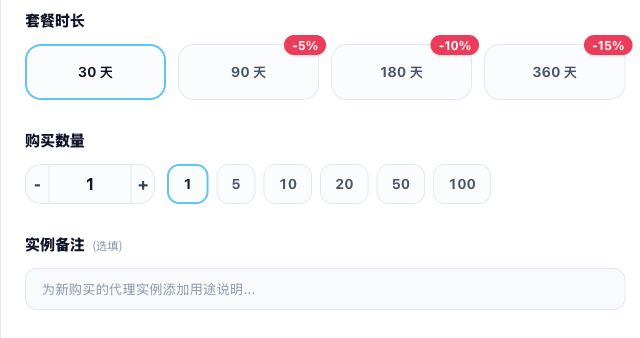
- Duration: Choose a plan period. The prototype shows 30, 90, 180 and 360 days; current prices and discounts are determined by the actual purchase page.
- Quantity: Use the minus/plus controls, quantity input or preset buttons to set the number of additional IPs.
- Instance note: Add a usage label in the optional note field, or leave it blank.
- Specification check: Confirm that the product supports your tool’s protocol and that the region, quantity and duration fit the task.
The images show the purchase prototype. Regions, specifications, prices and discounts pictured are examples rather than fixed quotes or stock guarantees. Check the actual configuration and final amount before submitting.
3. Review the order and pay
- Choose an available method in the Payment method (支付方式) section below the configuration.
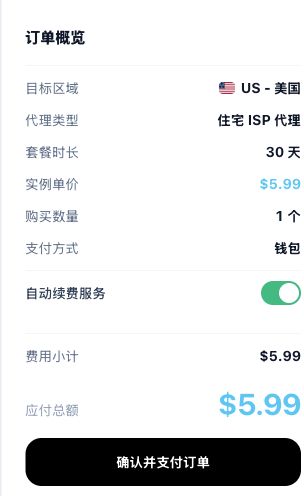
- Review the region, proxy type, duration, unit price, quantity, payment method and total in the Order overview (订单概览) on the right.
- Check the automatic renewal switch (自动续费服务), choose its state according to your plans and review the actual renewal rules.
- Read the service agreement and privacy policy. Once the order is correct, select Confirm and pay (确认并支付订单) and follow the chosen payment method.
- Return to the dashboard to check the result. If processing continues, review the existing order and payment records before following the page prompts, avoiding duplicate submission.
4. Find resources and test the connection
- After order completion, use Purchased proxy management (已购代理管理) in the upper-right corner or Static proxy management (静态代理管理) in the sidebar. If processing or allocation is pending, check the order status first.
- Check the resource type, region, IP quantity and expiration against your order.
- Open the connection details to obtain the endpoint, port and authentication information. Your website login password and proxy password are separate credentials.
- Configure your actual tool, check the exit IP and region, then test the target pages. See “Usage guide” for detailed setup steps.
Purchase questions
- Region or quantity unavailable: Adjust the configuration according to current stock and limits. Contact support if the available options do not meet your needs.
- Payment made but resources not visible: Check order status, payment records and the appropriate resource list. For support, provide the order number, payment time and page message; a proxy password is not needed.
- Unexpected price or discount: Review the product, duration, quantity and promotion conditions in the order. Use the actual payable amount as the reference.
- Extending existing resources: See the renewal guide when you need to keep existing resources. New purchases and renewals are separate operations.
After purchasing
Complete the first connection check before running your regular workload and monitor expiration dates. Continue with configuration tutorials, renewal and payment guidance as needed. For connection failures, start with the connection troubleshooting article in the FAQ.
After purchasing, read Proxy management for filtering, bulk actions, exporting and renewal.