The Subscription setting controls automatic renewal. Keep track of available balance and actual charge records; an enabled switch alone does not mean a renewal completed.
Images show the Chinese management prototype with demonstration data. Counts, IPs, amounts and dates illustrate the workflow; use your actual dashboard.
1. Review one resource’s subscription
Use the Subscription column to view or change that resource’s switch. Confirm the target IP first and check the resulting list state. Read any confirmation message before submitting.
2. Change subscriptions in bulk
- Select the resources and verify the count.
- Open More bulk actions → Bulk subscription settings.
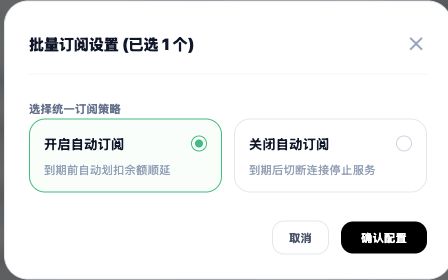
- Choose enable or disable and read the stated effects.
- Confirm it applies to every selected resource, choose Confirm configuration and check the list.
3. Understand enable and disable
- Enabled: the current panel describes a balance charge before expiry and an extension; keep sufficient available funds.
- Disabled: future automatic renewals stop. The resource keeps its existing validity, with service stopping at expiry as stated. Renew manually before expiry if needed.
- Changing a switch is not a completed renewal or evidence of a refund.
4. Verify an automatic renewal
Compare the resource’s new expiry with actual order and billing charges. For insufficient funds, charge failures or resource issues, review messages and contact support. Use actual records for charge timing and results; no fixed number of advance days is promised here.
Related guides: Proxy management overview · Protocols and configuration FAQ · Connection troubleshooting FAQ · Purchasing, payment and expiry FAQ