If a proxy is missing, check the account, order and active filters before assuming the resource is gone.
Images show the Chinese management prototype with demonstration data. Counts, IPs, amounts and dates illustrate the workflow; use your actual dashboard.
1. Review status categories
- Switch among All, Active, Expiring soon and Expired.
- Expiring resources can also be active, so do not simply add the category counts. Use dashboard definitions and expiry dates.
- If All is still empty, confirm the account and completed purchase order.
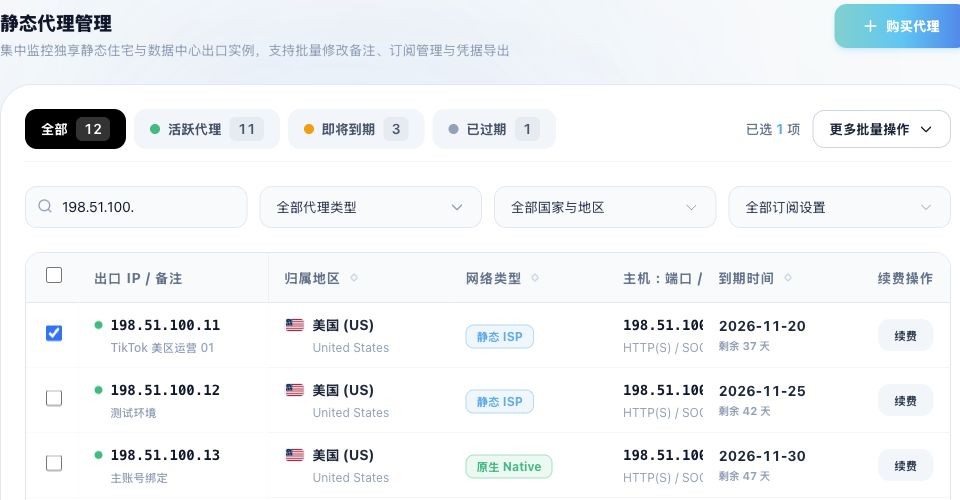
2. Combine search and filters
- Search by exit IP, port or a keyword in the remark.
- Narrow results by proxy type, country or region, and subscription setting.
- If results look wrong, clear search and restore all filters, then add conditions one at a time.
3. Check pages and selection scope
Adjust page size or move between pages. Before a bulk action, verify the selected count and resources; selecting the current page does not imply every page is selected. A filtered result count is not the selected count.
4. Payment completed but no resources appear
- Confirm the current account matches the purchasing account.
- Check whether the transaction was a proxy purchase or a top-up; a top-up alone creates no proxy.
- Confirm order completion, reset status and filters, and check pagination.
- If unresolved, provide the order reference, time and page message, with credentials and unrelated data redacted.
Related guides: Proxy management overview · Protocols and configuration FAQ · Connection troubleshooting FAQ · Purchasing, payment and expiry FAQ